
Lazy loading images means telling the browser to hold back every image that is not on screen yet and fetch it only when the visitor scrolls near it, and in HTML you do it with one attribute, loading="lazy", on the <img> tag. In our own test, that one attribute cut the bytes a page transferred on load from 2,822,053 to 1,276,085, a 54.8% drop, without touching a single image file.
This page covers the attribute, a lazy loading example you can paste, the measured numbers behind that claim, and the three places where lazy loading hurts instead of helps. The test pages and the Chrome settings are described in full so you can repeat every number yourself.
What Is Lazy Loading for Images?
Lazy loading for images is a browser behaviour where an image outside the visible part of the page is not downloaded until the reader scrolls close to it. The opposite is eager loading, which is the default: the browser requests every <img> on the page the moment it finds it, whether anyone will ever scroll that far or not.
The word "lazy" is slightly misleading, because the browser is not slow about the images it does load. It is selective. A page with 13 photos and a reader who only reads the top of it pays for the photos that reader sees, and the rest cost nothing. The MDN reference for the img element lists eager and lazy as the two values of the loading attribute, and says a lazy image is deferred until it reaches a distance from the viewport that the browser calculates.
Why lazy loading images matters for page weight
Images are usually the heaviest part of a page, so deferring the ones nobody scrolls to is the cheapest weight cut available. It does not shrink any file. It only removes the downloads that never needed to happen on that visit. That is why it pairs with compression instead of replacing it: compression makes each image smaller, and lazy loading makes fewer images load at all. Our guide to compressing images for a website covers the compression half in full.
Native lazy loading versus a JavaScript library
Native lazy loading is the loading attribute, built into the browser, and it needs no script. Before the attribute existed, sites used JavaScript libraries that swapped a placeholder for the real image when it scrolled into view. web.dev describes the attribute as the browser-level replacement for that pattern in its article on browser-level image lazy-loading, and the native route has two practical advantages: no script has to download and run before the first image can start, and the attribute still works for the reader whose JavaScript failed to load.
Lazy Loading Example: The One Attribute That Does It
A lazy loading example in HTML is a normal image tag with loading="lazy" added, plus the real width and height of the file. Nothing else is required.
<img
  src="/photos/harvest-1200.jpg"
  width="1200"
  height="900"
  loading="lazy"
  alt="Harvest table with the finished crop laid out"
>
That is the whole technique. The browser reads the tag, sees lazy, and waits to request harvest-1200.jpg until the image is near the viewport. An image without the attribute is requested immediately, exactly as before.
Lazy loading images in HTML: why width and height still matter
Add width and height to every lazy image, because a deferred image has no size until it loads, and a page without sizes jumps as each one arrives. The browser uses the two attributes to reserve the right amount of space before the file shows up. web.dev's guide to Cumulative Layout Shift names images without dimensions as a common cause of unexpected movement on a page, and lazy loading makes that movement happen in front of the reader, mid-scroll, instead of at the top where it might go unnoticed.
The two numbers are the file's real pixel size, not the size it displays at. CSS then scales it down, and the browser keeps the aspect ratio from the pair. If you are not sure what size a file really is, our guide on how to reduce image resolution explains pixels against file size.
A second lazy loading example: an image gallery
A gallery is the textbook place for lazy loading, because the reader sees one row and the rest sit far below. Put loading="lazy" on every thumbnail from the second row down, and leave the first row alone. The first row is on screen at load, so it should arrive as fast as possible. Everything else waits until the reader scrolls toward it.
How Much Does Lazy Loading Images Save? Our Measured Test
On a test page with one hero photo and twelve photos below it, adding loading="lazy" to the twelve cut the data transferred at load by 54.8%, from 2,822,053 bytes to 1,276,085 bytes. Here is exactly what was measured, because a savings figure with no setup attached is not worth much.
Lazy Loading Images Test Setup, in Full
The page had a 1920 pixel wide hero JPEG of 500,692 bytes and twelve 1200 pixel wide JPEGs of 193,076 bytes each, all compressed at quality 80 with the same engine that powers this site's compressor. The photographs came from a 4032 by 3024 camera original, resized and then compressed. The page was served from a local web server and loaded in Chrome 157 at a 1280 by 800 window with the browser cache disabled, and the transferred bytes were counted from Chrome's own network events.
We ran three versions of the page. In the first, no image had a loading attribute. In the second, the twelve photos below the hero had loading="lazy". In the third, the hero had it too.
| Page version | Images requested at load | Bytes transferred at load |
|---|---|---|
No loading attribute anywhere |
13 of 13 | 2,822,053 |
| Lazy on the 12 photos below the hero | 5 of 13 | 1,276,085 |
| Lazy on all 13, hero included | 5 of 13 | 1,276,099 |
The lazy pages did not request zero below-the-fold images. Five images loaded in total: the hero, plus four of the photos closest to the visible area. That is lazy loading working as designed. The browser fetches images that are close to the viewport before they are visible, so they are ready by the time the reader scrolls to them.
What Happens to Lazy Loading Images When the Reader Scrolls
Scrolling pulls the remaining images in, and a reader who jumps straight to the bottom of the page does not load every image in between. In our run, after jumping to the bottom of the second page the browser had requested 10 of the 13 images and transferred 2,242,420 bytes in total. The three images in the middle of the page were never requested, because the page never stopped near them.
That detail matters for how you judge the savings. A reader who scrolls the whole page slowly eventually downloads everything, and the total approaches the eager number. What lazy loading changes is when the bytes arrive and whether the readers who leave early ever pay for them. It saves the most on long pages and on pages where many visitors never scroll far.
What This Lazy Loading Images Test Does Not Measure
This test measures bytes on one controlled page, not your readers' experience, and it does not describe how any other site behaves. The 54.8% figure comes from this page's mix of one large hero and twelve equal photos. A page with different image counts and weights will land elsewhere, and a page whose images mostly sit near the top will save much less. Use the method, not the percentage.
Do Not Lazy Load the Largest Contentful Paint Image
Never put loading="lazy" on the image that is the largest thing visible when the page first loads, which is almost always the hero photo, because that image is the one Google measures in Largest Contentful Paint. web.dev's guide to Largest Contentful Paint defines the metric and sets 2.5 seconds as the threshold for a good score, and its LCP optimization guide says plainly that the LCP image should not be lazy loaded.
Lazy Loading the Hero Image: What the Throttled Test Showed
We expected to see the damage and did not see it, so here is the honest result. On a throttled connection, a hero with loading="lazy" loaded in a median of 2,760 milliseconds, against 2,740 for the same hero with no attribute and 2,756 with fetchpriority="high". Those three numbers are inside the run-to-run noise of this setup, each from three runs per version.
| Hero version, 1920 px JPEG, 500,692 bytes | LCP, three runs, median |
|---|---|
| No attribute | 2,740 ms |
loading="lazy" |
2,760 ms |
fetchpriority="high" |
2,756 ms |
The throttling was Chrome's network emulation at 1.6 megabits per second down with 150 milliseconds of latency, and the hero was the only image on the test page. So on a plain page with a hero in the first screen, Chrome started the lazy hero without a visible delay. That does not make the advice wrong. Web.dev's reasoning is that the browser may need layout to finish before it knows the image is in the viewport, and that cost depends on the page. A page with a heavy script, a late-applied stylesheet or a slow layout can pay it where our minimal page did not. The risk is real and the upside is nil, so the rule stays: leave the hero eager.
Lazy Loading Images Below the Hero Can Speed Up the Hero
Lazy loading the images below the hero made the hero paint faster in our test, because it removed their competition for bandwidth. With twelve photos on the page and none of them lazy, the hero's LCP was a median of 12,600 milliseconds on the throttled connection. With loading="lazy" on those twelve, it fell to 5,536 milliseconds. Same hero, same page, same network emulation; the only change was the attribute on the images below it.
| Page, throttled to 1.6 Mbps and 150 ms latency | Hero LCP, three runs, median |
|---|---|
| Hero alone | 2,740 ms |
| Hero plus 12 eager photos | 12,600 ms |
| Hero plus 12 lazy photos | 5,536 ms |
The explanation is bandwidth. Thirteen images requested at once share one connection, so the hero arrives after a share of everything else. Lazy loading removes most of that competition. It did not bring the hero back to 2,740 milliseconds, and we did not log the request count in the throttled runs, so we cannot say how many neighbours Chrome still fetched alongside the hero there. In the unthrottled run, four photos near the hero loaded with it. The most likely reading is that those four were still competing, but that is an inference, not a measurement.
Which Images Should You Lazy Load?
Lazy load every image that starts below the visible part of the page, and leave every image that is visible at load on the default eager behaviour. That one split covers nearly every page, and the work is deciding which side each image falls on.
Images Not to Lazy Load
Leave these without the attribute:
- The hero image and any image inside the first screen of the page.
- Your logo and anything in the header, which is visible on every page load.
- The first image in an article, because on most layouts it is the LCP element.
- Any image the page needs before it can look finished, such as a product photo above the price.
Images to Lazy Load
Add the attribute to these:
- Gallery images below the first row.
- Product cards in a long listing.
- Images in the second half of a long article.
- Author photos, related-post thumbnails and anything in the footer.
If you are unsure whether an image is on the first screen, test it at a phone width and a desktop width, because "first screen" changes with the window. An image that is below the fold on a laptop can be the first thing on a narrow phone.
Lazy Loading Background Images in CSS
Lazy loading background images is not possible with the loading attribute, because the attribute exists only on <img> and <iframe> elements, not on a CSS background-image. A background image loads as soon as the browser matches the rule that uses it.
There are two ordinary fixes. The first is to stop using a background image for content that matters and put a real <img> in its place, so the attribute works and the image gets alt text for search engines and screen readers. The second is to keep the CSS background but attach it only when the element nears the screen, using the browser's Intersection Observer API, which reports when an element enters the viewport. A small script then adds a class that carries the background-image rule. We have not tested that script on this site, so we describe the approach and leave the code to the MDN reference.
Lazy Loading Images in WordPress and React
In WordPress and React you do not need a plugin or a library, because both pass the loading attribute straight through to the browser. In React, <img loading="lazy" ... /> works exactly like the HTML version. WordPress has added loading="lazy" to the images it outputs by default since version 5.5, as the project's own developer post on lazy-loading images in 5.5 records.
We did not test either platform for this page, and WordPress behaviour has changed across releases, so check what your own theme outputs. Open a page, view the source, and look at the first image on it. If your hero image already carries loading="lazy", remove it there.
Does Lazy Loading Images Hurt SEO?
Native lazy loading does not hurt SEO when the images load as the page is scrolled and the markup stays a normal <img> tag. Google's own documentation on lazy-loading for search says that content has to load when it becomes visible, and that browser-level lazy loading is one supported way to do it.
The practical risk is not the attribute. It is lazy loading done in a script that needs a scroll event to run, where an image with no src attribute never appears for a crawler that does not scroll. Using the plain attribute avoids that. An image with a normal src, alt text and a loading="lazy" attribute is a normal image to a search engine. If you are optimizing image weight for search, the order is the same as for speed: right size first, compression second, lazy loading third.
Compress Before You Lazy Load: The Order That Works
Compress the images first and lazy load them second, because a lazy image that is still 2 MB is only a delayed 2 MB download. Lazy loading decides when a file loads. It does nothing for how big the file is.
Here is how we made the files for the test above, so you can do the same on your own images.
Step 1: Resize Images Before You Lazy Load Them
A 4032 pixel wide camera original shown 600 pixels wide wastes most of its pixels, so resize before anything else. Resizing is the largest single saving, and it happens outside the compressor in your editor or CMS. Our guide to reducing image file size walks through the tools for it.
Step 2: Open the Image Compressor and Set the Quality
Open the free image compressor, choose the output format and set the quality slider. We left it at the default of 80, which is the setting every file in the test used.

Step 3: Compress the Image and Read the Result
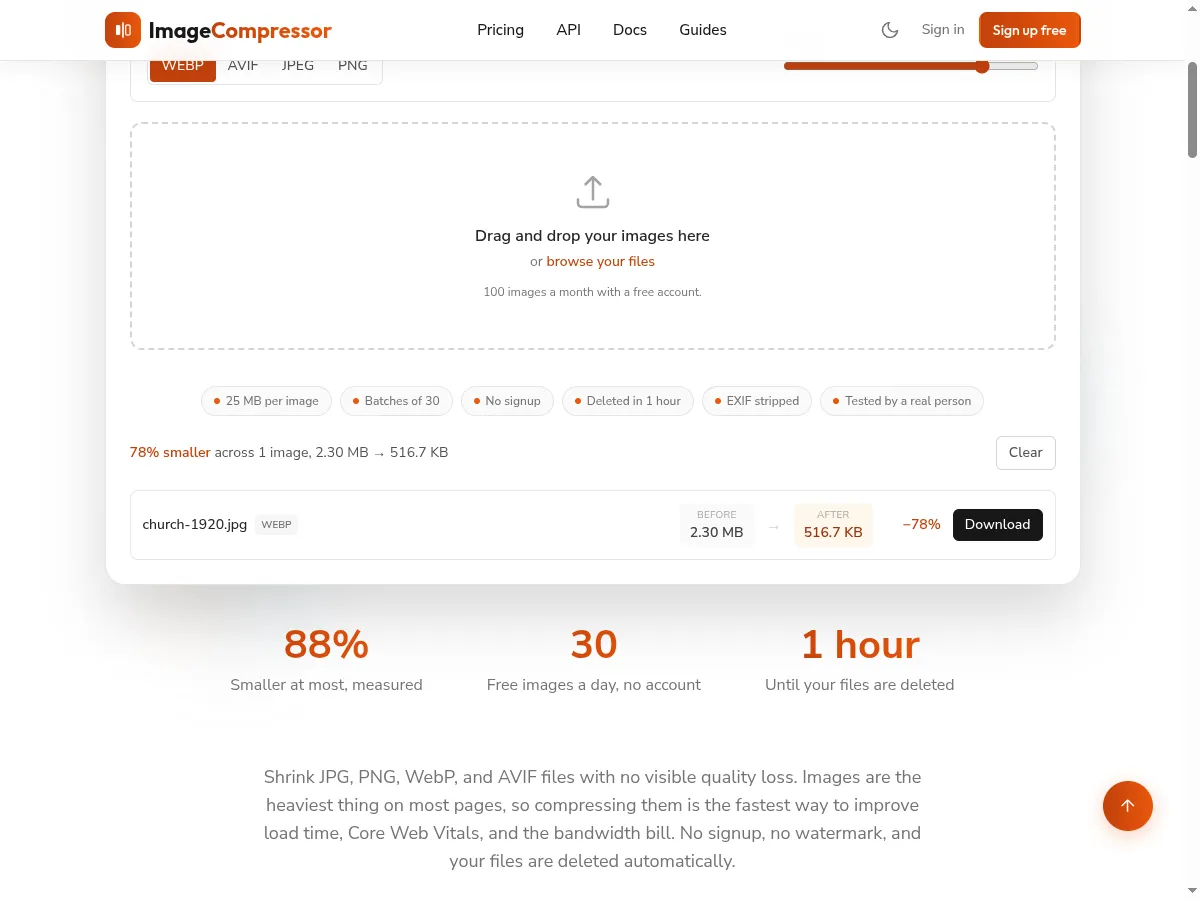
Drop the resized photo onto the upload area. The tool compresses it on upload and shows the before and after sizes next to each other. Here the 1920 pixel hero, 2.30 MB as uploaded, came back at 516.7 KB as a WebP.
The JPEG used in the test pages (500,692 bytes) came from the same engine at the same quality setting, written as JPEG instead of WebP. If your goal is a small file for a hero image, our JPG compressor page has that route. If you are choosing between formats, AVIF against WebP has measured sizes.
Step 4: Add the Lazy Loading Attribute Below the Fold
Once the files are small, add loading="lazy" plus width and height to every image below the first screen, and leave the hero as it is. Then check the result in your browser's network panel: reload with the cache disabled and count the image requests before you scroll. If the count equals the number of images on the page, the attribute is not reaching the browser.
What Lazy Loading Does Not Fix
Lazy loading does not fix a hero image that is too big, and our other test shows how much that matters. With no lazy loading involved, the same page's LCP rose from 732 milliseconds with an 800 pixel hero to 9,348 milliseconds with the 4032 pixel photo, compressed to 1,881,123 bytes, on the throttled connection. We cover that measurement in detail in what file size does to your Largest Contentful Paint image.
The short version: lazy loading handles the images nobody is looking at yet, and compression and sizing handle the one they are. You need both.